TouchDesigner | Buttons for Interfaces

Building any system that requires an operator who isn't the system designer often involves creating a control panel to operate the patch or network in question. A control panel can also be useful for controlling various elements of a system that might otherwise be too complicated to manipulate directly.
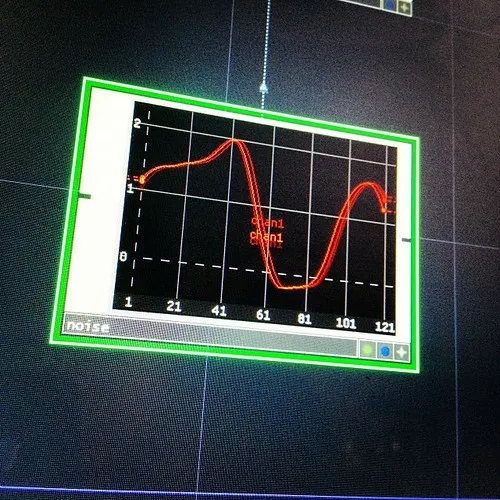
In TouchDesigner one of the handy built in components that you might think about using is a button. Buttons have various states of operation that offer different types of control. Let's star this process by looking at some actual buttons in TouchDesigner so we can see some how these work in practice.
Lets start by creating a new network, and deleting the template operators – if you're new to touch you can draw a rectangular selection by clicking and dragging with the right mouse button. Select all off the operators and hit delete or backspace. You can also close your palette browser. You should now be left with an empty network.
To get started we're going to double click the empty network or hit TAB on your keyboard. This brings up the Operator Dialog window. Make sure that you're in the COMP (component) tab of the dialog window, and select a "Button" from the "Panels" column.