Common Operations Cheat Sheet
Calls for Global Variables
| Time | Domain | Expression |
|---|---|---|
| Seconds | bound to Time Line | time.seconds |
| Seconds | absolute time - constantly incrementing | absTime.seconds |
| Frames | bound to Time Line | time.frame |
| Frames | absolute time - constantly incrementing | absTime.frame |
Scripts
Parameter Referencing in a Container (Using a parent to set resolution)
- Width -
me.parent().par.w - Height -
me.parent().par.h
Using Storage to hold information
Syntax
component_for_strorage.store( "key" , value or object )
Example
me.parent().store( 'width' , 1920 )
Using Storage to retrieve information
Syntax
component_containing_strorage.fetch( "key" )
Example
#Example 1
me.fetch( 'width' )

#Example 1
op('project1').fetch( 'width' )
Using digits to retrieve the integer value of an operator
Syntax
operatorname.digits
Example
#Example 1
op( 'moviefilein1' ).digits

#Example 2
me.parent().digits
Run a Text DAT
Syntax
textDAT.run()
Example 1
Here we assume that there is an existing text DAT that contains a script that you would like to run.
runMe = op( 'textDATyouWantToRun' )
runMe.run()
Example 2
a = "print( 'Hello World' )"
run(a)
Example 3
a = '''
b = 10

for i in range( b ):
 print( i )
'''

run(a)
Simple if else statement
Syntax
if condition a ==  a testable value:
     do this operation
else:
     do a different operation
Example
test = op['chop2']( 'chan1' )
movie = op( 'moviefilein1' )
if test == 0:
      movie.par.file = 'flower1.jpg'
 else:
      movie.par.file = 'leaves.jpg'
Open the viewer of an operator
Method 1
Syntax
operatorname.openViewer()
Example 1
op( 'container1' ).openViewer()
Method 2
Syntax
variable_name = operatorNameAndPath
variable_name.openViewer()
Example 2
ctrl = op( '../container1' )
ctrl.openViewer()
Copy Contents of One DAT to Another
Syntax
op( 'targetDAT' ).copy( op( 'sourceDAT' ) )
Example 1
op( 'to' ).copy( op( 'from' ) )
Example 2
to = op( 'to' )
from = op( 'from' )

to.copy( from )
Run a .bat file from Python in TouchDesigner
Syntax
from subprocess import Popen
Popen( [ filePathHere ] )
Example 1
from subprocess import Popen

file = "E:\\GitHub\\Beneath\\tools\\robo_copy\\batTest.bat"

Popen( [ file ] )
Execute a String
Syntax
exec( "op( 'targetOp' ).par.parameter = value" )
Example 1
target_par = 'invert'
target_op = 'level1'
val = 0

# build your script as a string

command = "op( '" + target_op + "' ).par." + target_par + " = " + str( val )

# print to debug and make sure it's what you want to be

print( command )

# execute the command

exec( command )
TouchDesigner User Interface Scripts
Open an Explorer Window
Syntax
ui.chooseFile()
Example 1 Here we assume that there is another text DAT (text1) that we want to populate with the path to a file.
op('text1').text = ui.chooseFile(
    fileTypes = tdu.fileTypes[ 'image' ],
    title = 'Select an image' )
Example 2 Here we assume that there is another DAT (text1) that we want to populate with a path to a file – we further want to limit the kind of file that we're selecting to an image file, and we want to give the explorer window the title "Select an Image."
op('text1').text = ui.chooseFile(
    fileTypes=tdu.fileTypes['image'],
    title = 'Select an image' )
Change the Background Color
Syntax
ui.colors['worksheet.bg'] = ( r , g , b )
Example
We can make our background bright green.
ui.colors[ 'worksheet.bg' ] = ( 0.0 , 1.0 , 0.0 )
Format a Group of Ops
Example
Lets imagine that we want to format a lot ops in one go.
# create an empty list for all ops

null_ops = []

# create a list of names

null_types = [
    null_tops,
    null_sops,
    null_dats,
    null_mats,
    null_chops
]

# create lists of all op types

null_tops = parent().findChildren( type = nullTOP )
null_sops = parent().findChildren( type = nullSOP )
null_dats = parent().findChildren( type = nullDAT )
null_mats = parent().findChildren( type = nullMAT )
null_chops = parent().findChildren( type = nullCHOP )

# extened empty list with the contents of all op types

for type in null_types:
    null_ops.extend( type )

# turn off the display of all ops, set them to black

for item in null_ops:
    op( item ).viewer = False
    op( item ).color = 0 , 0 , 0

# debugging line - check the contents of the null_ops list

# print( null_ops )
Set the Color of an Operator
Syntax
op( 'nameOfOperator' ).color = ( r , g , b )
Example
We can make any operator any color we like.
op( 'text1' ).color = 1 , 0 , 0
Learn more about the UI Class
Using the Interface
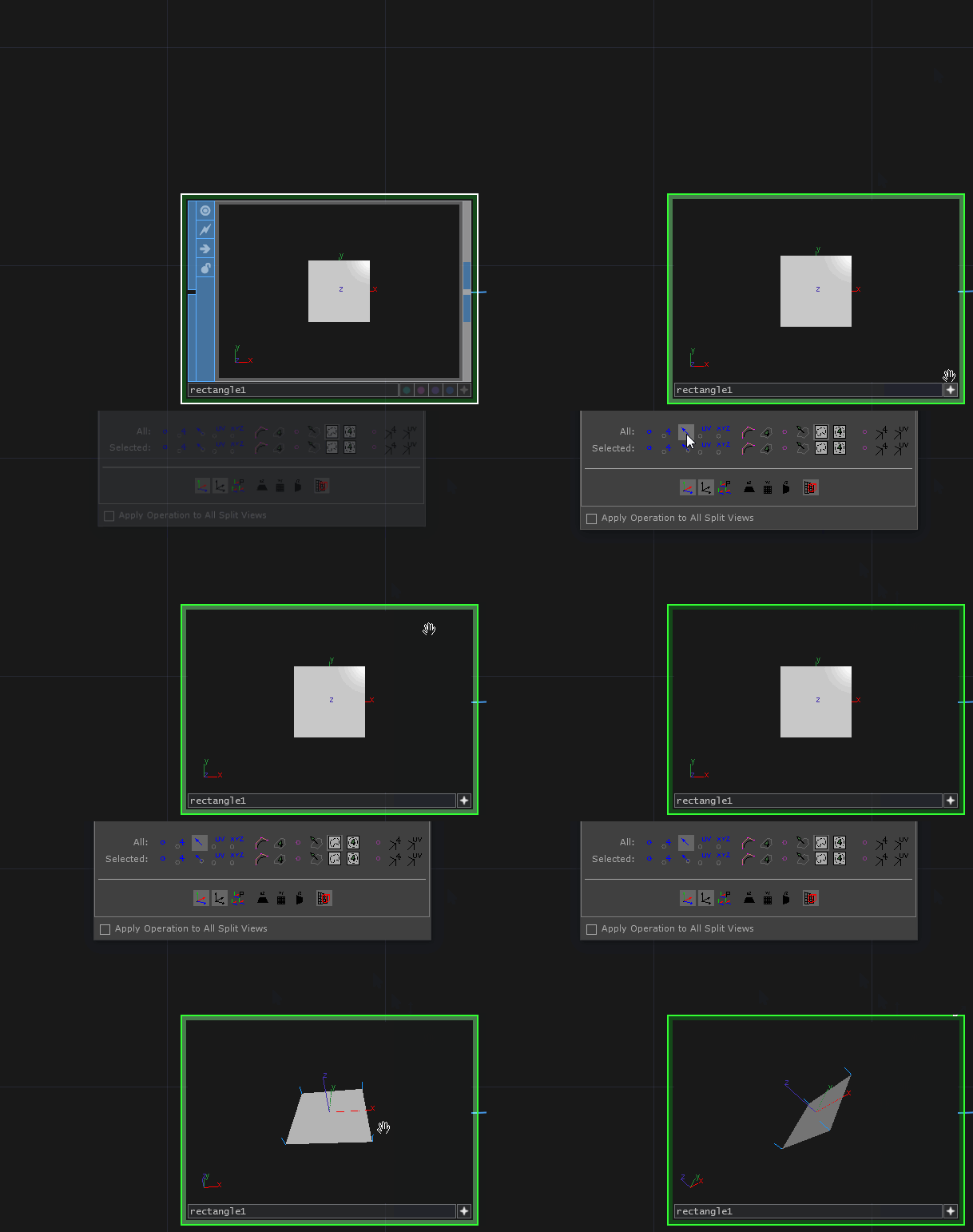
Display the Normals on a SOP
CHOPs
The Math CHOP
In the Math CHOP the From Range is based on the incoming values, and the To Range is the outgoing values. This is a scaling operation. If we were going to write this as a sentence we might think of it by saying "I would like numbers From 0 to 1, To be scaled to numbers between 20 and 40. In the picture below we can see values From 0 – 1, now scaled To 0 – 100.

System Variables
Display Console Window at Touch Start Up
Create a new Windows Environment Variable and use the following settings:
Variable Name: TOUCH_TEXT_CONSOLE
Variable Value: 1
Conceptual Frames
Ins and Outs
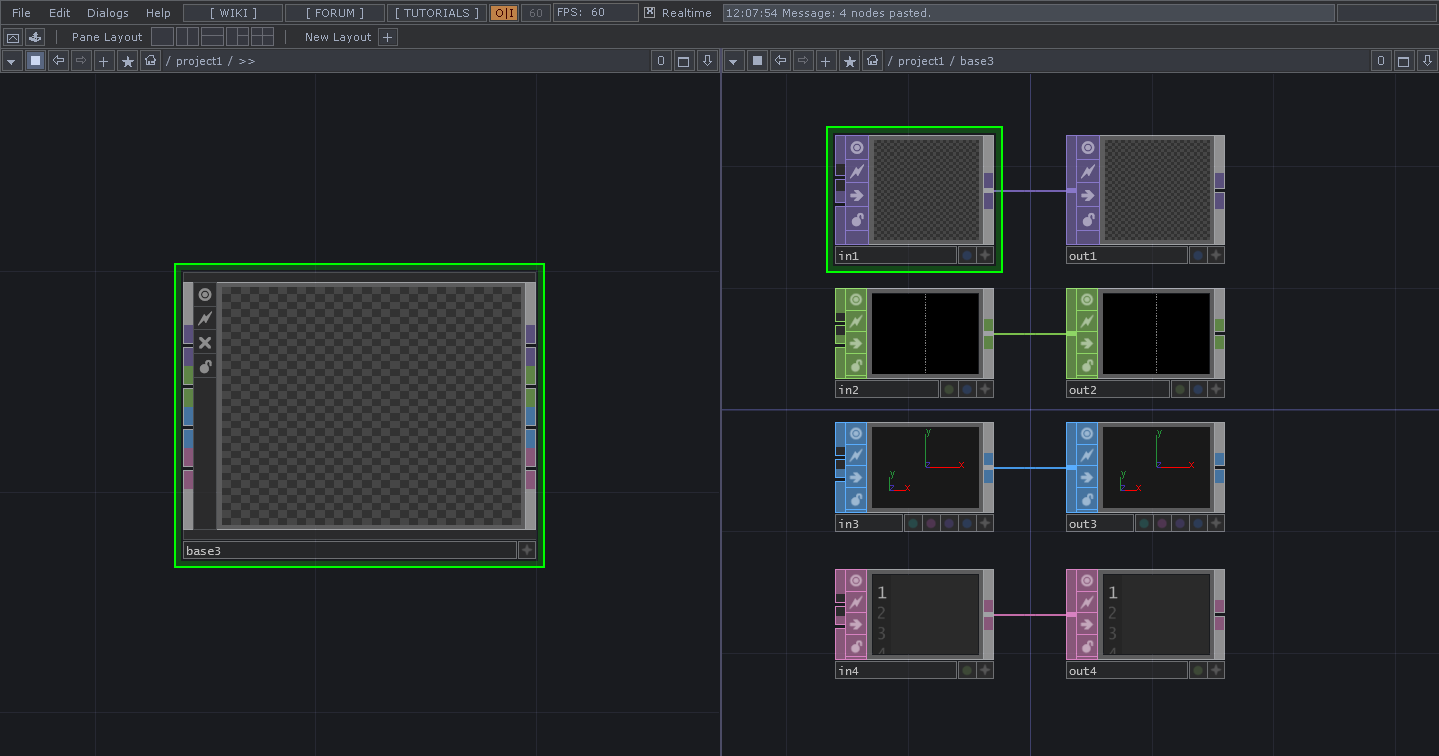
Encapsulating a process in TouchDesigner is a wonderful way to make re-usable custom components. When we make something modular, however, we often need a way to pass information into or out of our module. How can we do that? TOPs,CHOPs, SOPs, and DATs all have In and Out operators for just this purpose. An In TOPCHOP/SOP/DAT creates an inlet on a container or base, and an Out TOPCHOP/SOP/DAT creates an outlet. In the image below we can see a split network view where we're looking at a base from the outside (left), and at the inside of the base (right). We can see that there are inlets that correspond to our Ins that are located on the left side of the base.

In this second image we can see a split network view where we're looking at a base from the outside (left), and at the inside of the base (right). We can see that there are outlets that correspond to our Outs that are located on the right side of the base. In this example we can see errors in our network because Out Operators expect to have a source connected to them.

In this third image we can see a split network view where we're looking at a base from the outside (left), and at the inside of the base (right). We can see that there are inlets and outlets that correspond to our Ins and Outs that are located on the left and right side of the base.
TouchDesigner | Keyboard Shortcuts